Logs and Diagnostics
Good diagnostics significantly reduce support turnaround time.
How to Enable Diagnostics in Release Build
Session Unlock from Settings
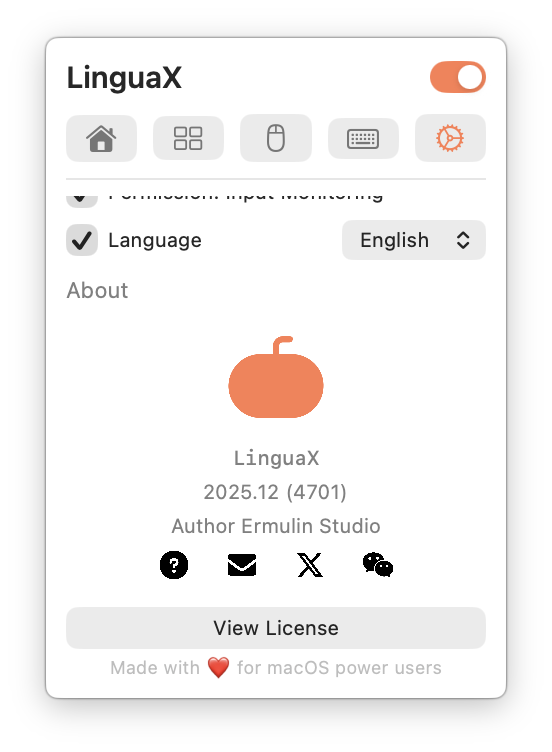
- Open LinguaX and go to the
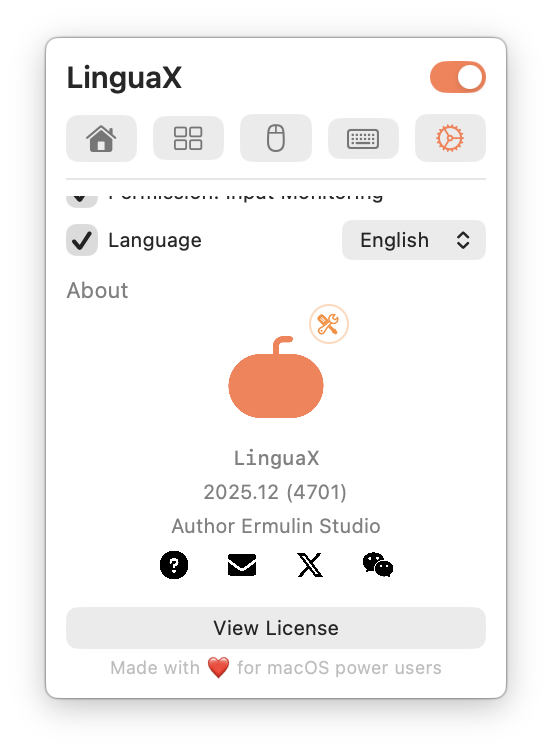
Settingspage. - Click the app logo at least 3 times within 2 seconds.
- When the wrench badge appears on the logo, diagnostics is enabled for the current session.
- Go to the mouse or keyboard page, click the orange finger icon (
Diagnostics Center), export diagnostics, and send it to support.
Notes:
- This session unlock is temporary and resets after app restart.
- No terminal command is required.
- The old terminal toggle method is deprecated and may not work reliably on newer macOS environments.
What to Collect
- LinguaX version
- macOS version
- affected app/browser name
- affected domain (if website rule related)
- issue timestamp
- exact expected behavior vs actual behavior
- concise reproduction steps
Reproduction Template
- Open
<app or website>. - Switch from
<context A>to<context B>. - Actual:
<what happened>. - Expected:
<what should happen>.
Rule Snapshot Checklist
Before escalation, record:
- the app rule expected to trigger
- the domain rule expected to trigger (if any)
- any broad or overlapping rules
Evidence to Attach
- screenshot of relevant rule settings
- short screen recording
- exact in-app error text
Avoid sharing sensitive personal data.
Minimal Validation Before Contacting Support
- Restart LinguaX.
- Test one simplified rule.
- Re-test original scenario.
If issue persists, send the collected diagnostics.
Feedback Reward Policy
If your feedback is accepted and shipped, LinguaX will grant a 1-year license.